


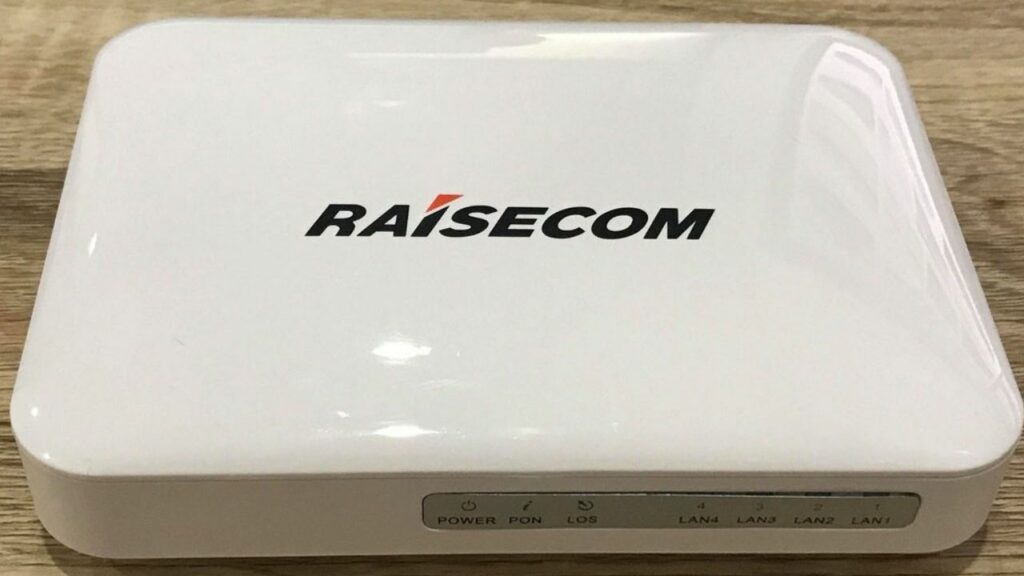
Raisecom Iscom HT-803-N Setup – Onu Configurations and a full setup. Follow the guidelines to configure your Raisecom HT-803-N Fiber Router
Also Read: Mikrotik RB5009
Table of Contents
Complete Guide to Raisecom ISCOM HT-803-N Router: Login, Superadmin Password, and Setup
The Raisecom ISCOM HT-803-N is a popular home security gateway and Optical Network Unit (ONU). Widely deployed by Internet Service Providers (ISPs) for Fiber-to-the-Home (FTTH) internet connectivity, this device terminates the optical fiber line directly at the customer’s premises.
Whether you need to configure PPPoE settings, set up port forwarding, or simply change your Wi-Fi password, you will need access to the router’s dashboard. In this detailed guide, we will walk you through the login process, provide the highly sought-after superadmin password, and break down the router’s technical specifications.
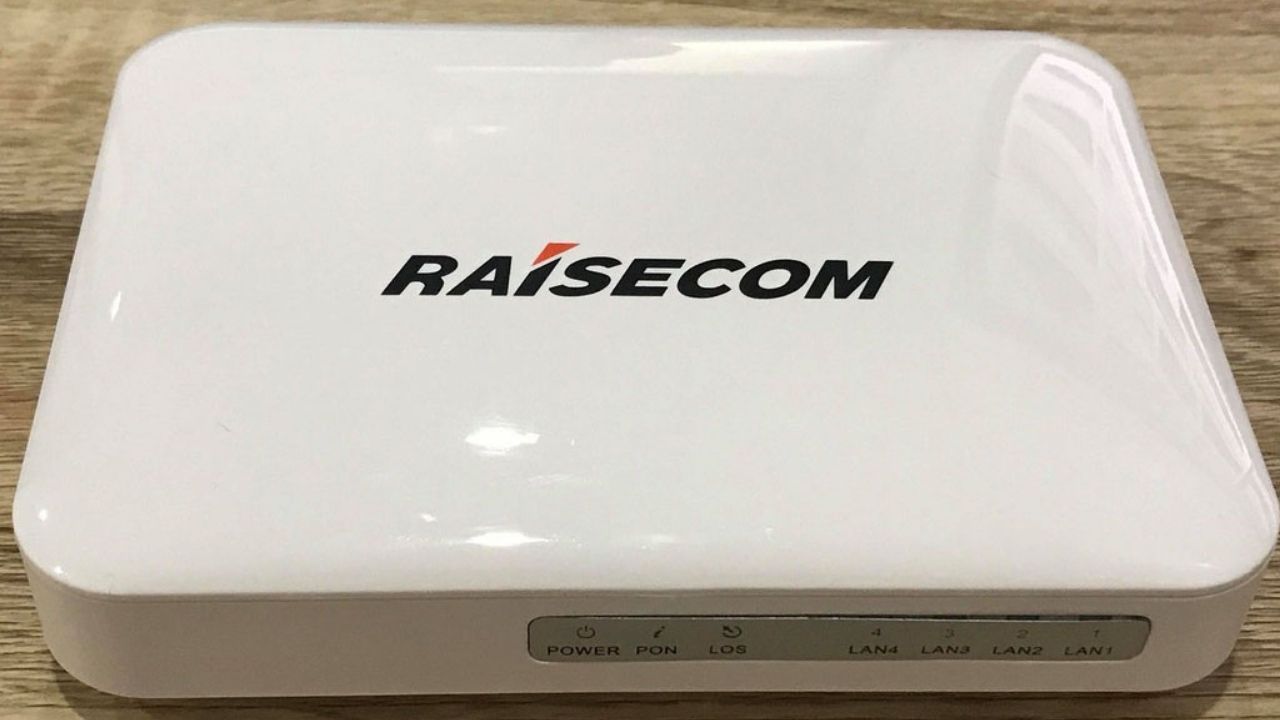
What we like: Pros
- Gigabit Ethernet Port
- Decent Router
- Affordable
- Small & Compact Design
What we dislike: Cons
- Only One Gigabit Ethernet Port
- No Dual Band Support
- No WiFi Antenna
- Poor WiFi Coverage
Also Read: Nokia G-140W Router
Raisecom HT-803-N Default Login Credentials
Unlike standard consumer routers, the Raisecom HT-803-N utilizes a dual-privilege account system. You can log in using either a standard user account (for basic settings) or a superadmin account (for advanced WAN and internet configurations).
| Privilege Level | Username | Password | Access Rights |
| General User | useradmin | useradmin | Basic Wi-Fi settings, LAN configurations, and status monitoring. |
| Super Administrator | superadmin | q!w@e# | Full access to WAN configurations, PPPoE routing, and ISP network settings. |
Pro Tip: If you want to configure this ONU for a different ISP or set up Quality of Service (QoS), you must use the superadmin credentials.
superadmin password
q!w@e#
Step-by-Step Raisecom Router Login Guide
Logging into your Raisecom Optical Network Terminal (ONT) is a straightforward process. Follow these steps to access the web management dashboard:
To log in to Raisecom Router Please follow the steps below:
- Connect your Pc or Laptop to Router using an RJ45 Ethernet Cable or you can also use Wireless Network
- Open a Web Browser on a PC and type the IP Address of your Raisecom ONU (printed on the backside of the router), Generally 192.168.1.1
- The Raisecom Router Login page will be opened like below
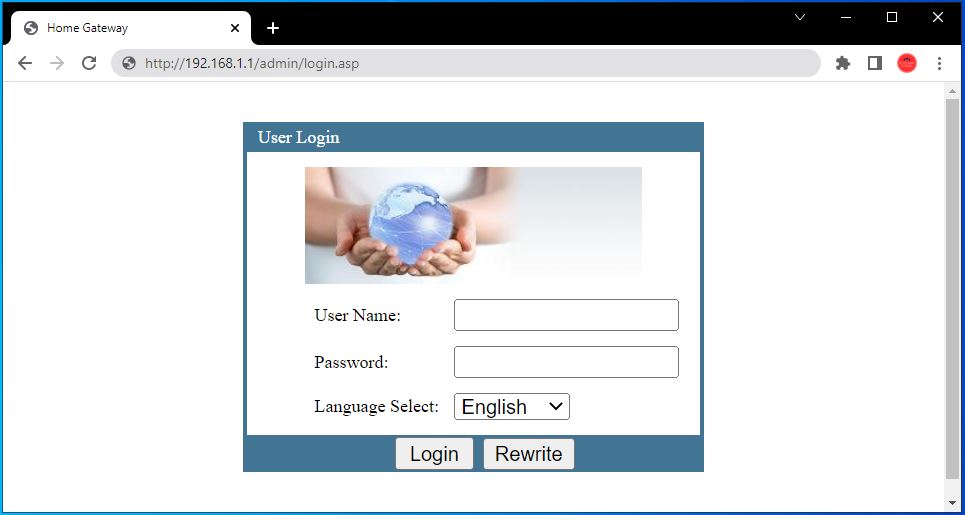
- In the login screen, enter the Username, Password and Click Login
| Username | Password |
useradmin | useradmin |
superadmin | q!w@e# |
- You will now be logged in to Raisecom Router
- After successful login, you will see a Dashboard like below

Raisecom HT-803-N Configurations
Pros, Cons, and Performance
Before diving into the deep technical specifications, here is a quick overview of what to expect from this hardware:
What We Like (Pros):
- Includes one highly capable Gigabit Ethernet Port for high-speed wired connections.
- Compact, lightweight (0.2 kg), and visually unobtrusive design.
- Highly affordable, making it a favorite for massive ISP deployment.
- Plug-and-play capability with auto-provisioning support for ISPs.
What We Dislike (Cons):
- Lacks external Wi-Fi antennas, resulting in poor wireless range.
- Does not support Dual-Band Wi-Fi (No 5GHz support).
- Only port 1 supports Gigabit speeds; the remaining LAN ports are limited to 10/100 Mbps.
Technical Specifications & Features
The Raisecom ISCOM HT-803-N is packed with enterprise-grade networking features designed to handle heavy fiber traffic efficiently.
Raisecom Iscom HT-803-N Features
- Feature small size, attractive appearance, and low weight, thus applicable to home use.
- Comply with IEEE 802.11 and China telecom standards.
- Support multiple management modes, such as EMS and Web access, and provide abundant alarms, thus able to reduce the time for locating faults and lower maintenance costs.
- Feature low price, thus able to lower the cost of constructing an FTTH network for a single user and applicable to massive deployment.
- Support being pre-configured for different groups of users, thus able to plug and play upon home installation and facilitate service activation, operation, and maintenance.
- Pass carriers’ internet working test and concentrated purchase test, thus able to internetwork with other vendors’ OLT.
Hardware Dimensions & Power
- Dimensions: 108 mm (L) × 88 mm (W) × 31 mm (H)
- Weight: 0.2 kg
- Power Adapter: Input 100–240 VAC (50/60 Hz) | Output 12 VDC, 0.5 A
- Power Consumption: Less than 3 Watts
Network & Ethernet Capabilities
- Auto-Negotiation: Supports 10/100 Mbit/s auto-negotiation and 1000 Mbit/s (Gigabit) full-duplex flow control.
- Storm Control: Built-in protection against broadcast storms (DLF packets, unknown multicast packets).
- MAC Address Management: Supports MAC address learning, aging limits, and manual querying.
- VLAN Support: Handles IEEE 802.1Q, up to 4094 concurrent VLANs, and IEEE 802.1ad VLAN Stacking.
Advanced Routing & Security
- QoS (Quality of Service): Classifies traffic across Layer 2, Layer 3, and Layer 4. Prioritizes packets based on MAC address, VLAN ID, IPv4, and TCP/UDP ports.
- Multicast: Supports IGMP/MLD Snooping for efficient IPTV and video streaming delivery.
- Loop Detection: Actively detects inner loops, self-loops, and outer loops to prevent network crashes.
FAQ
What is the superadmin password for the Raisecom router?
The default superadmin password for the Raisecom ISCOM HT-803-N is q!w@e#. The corresponding username is superadmin.
What is the IP address of Raisecom Router?
The default IP Address of Raisecom Router is 192.168.1.1
How do I factory reset my Raisecom router?
To perform a hard reset, locate the small physical “Reset” button on the back of the device. Use a paperclip or pin to press and hold the button for about 10 seconds until all the LED indicator lights blink simultaneously. This will wipe all custom settings and restore the factory defaults.
Does the Raisecom HT-803-N support Gigabit internet?
Yes, the router supports speeds up to 1 Gigabit per second. However, only the primary port (LAN 1) is a Gigabit port. The other Ethernet ports max out at 100 Mbps.
Is the Raisecom HT-803-N a dual-band Wi-Fi router?
No, the Raisecom ISCOM HT-803-N does not support dual-band Wi-Fi and lacks external Wi-Fi antennas. Because it is primarily designed as a compact Optical Network Unit (ONU) for terminating FTTH (Fiber to the Home) connections, it offers limited wireless coverage and is best paired with a secondary, high-powered wireless router for home use.
Can I configure this router for a different ISP?
Yes. If your new ISP utilizes an OLT (Optical Line Terminal) that supports Raisecom hardware, you can log in using the superadmin credentials and manually configure the new PPPoE settings.


13 Comments
Hi bro, how to config this ONU for another ISP fiber connection? That ISP has already unblocked this ONU unit in their server, but saying PPPOE option missing so cannot configure this ONU. By the way, I brought this from Nepal (ViaNet) to Bangladesh when I returned to my country. Thanks.
Hello bro, Yes you can configure this ONU for any other ISP.
Ask your ISP if their OLT Support Raisecom ONU.
If they do, then login with SuperAdmin, and from there you can find and change PPPOE Configurations.
Thank You.
Please Subscribe.
Thanks for the SuperAdmin Password. I have searched everywhere but wasn’t able to find. I’m glad I found SuperAdmin Password here.
Hello! Please make a guide to setup QoS. Could not understand anything there.
Does port forward still works ??
Yes, the port forwarding works fine.
Can you make a video about port forwarding in vianet
Thanks for superadmin password.
Thank you for superadmin password.
Superadmin password works! Thank you.
Superadmin Password Works. Thanks.
This router supports 10/100/1000..???
Yes, this router supports speeds up to 1 Gigabit.
Only the first port of ONU is Gigabit, and other ports are only 100 Mbps.